
Skills
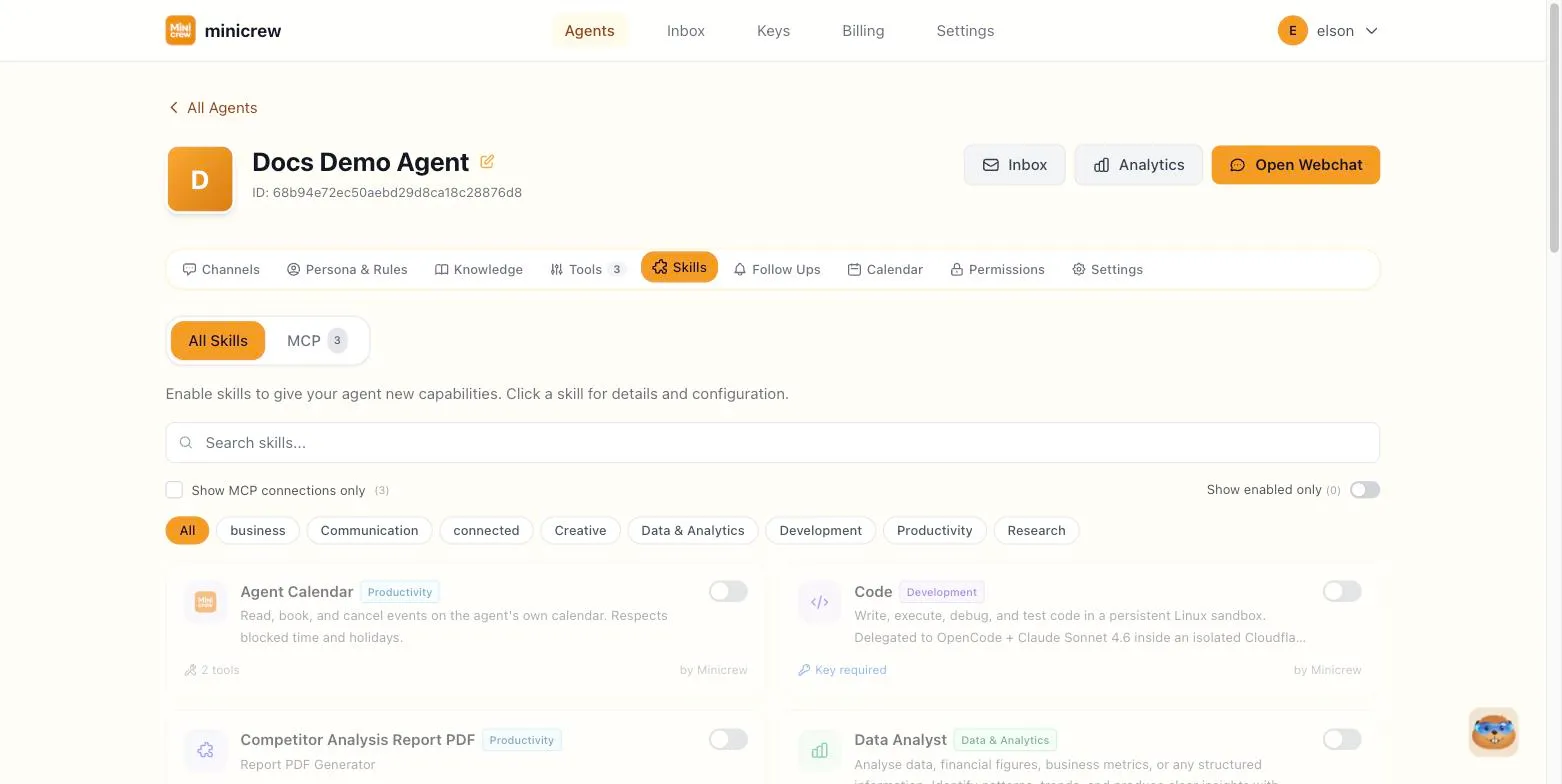
The Skills tab is where you give your agent new capabilities beyond just chatting. Think of a skill as a bundle: it usually brings along the underlying tools it needs, and for some skills, its own settings screen.
All Skills vs. MCP
Section titled “All Skills vs. MCP”The tab has two sub-sections:
- All Skills — a searchable grid of every skill available to your agent, covering Minicrew’s own built-in skills plus any you’ve connected yourself.
- MCP — where you manage your own connected tools and services (see below). Once you have any connections, the tab shows a count badge.
Built-in skills
Section titled “Built-in skills”Built-in skills carry a “Built-in” badge in the skill’s detail view and are ready to use out of the box: web research, data analysis, code execution, integrations such as Odoo or Google Sheets/Calendar. Click a skill’s card to open its details. You’ll find an Enabled/Disabled toggle, the list of tools it uses under the hood, and any skill-specific settings it declares (dropdowns, text fields, toggles, or a custom picker, for example choosing which Google Sheet the agent can read). If the skill needs credentials, an API Key picker shows up too (or Authorised Account, for integrations that connect via a hosted login) — pick an existing key/account or create a new one. A skill with no key linked shows a warning and won’t work until you link one. Where the skill provides setup documentation, you’ll also see a link to it.
Turning a skill on quietly makes sure the agent has what it needs to reach and use it. You don’t need to separately hunt down and enable supporting tools.
Example: Odoo permissions
Section titled “Example: Odoo permissions”The Odoo skill (and its related skills) has an Advanced Settings button in its detail view that opens a dedicated screen for:
- Company — restrict this agent to a single Odoo company, or leave it blank to work across every company you have access to (only available if your Odoo connection is shared/tenant-wide, not per-user).
- Per-module permissions — for each configurable Odoo module (Sales, Inventory, etc.), choose what the agent is allowed to do: read-only, read + write, or scoped to “own records only” where that concept applies. Modules the connection always allows, and can’t be restricted further, are listed separately.
When you first enable Odoo, Minicrew seeds sensible defaults based on how your Odoo account is connected. You can fine-tune from there.
Connecting your own tools (MCP)
Section titled “Connecting your own tools (MCP)”MCP (Model Context Protocol) is how you connect a tool or service Minicrew doesn’t build in itself, your own internal API, a niche SaaS product, anything that speaks the MCP standard. Switch to the MCP sub-tab to manage these. Each connection you add becomes its own skill, marked with an MCP badge, and you can enable it on any agent. A newly created connection is automatically enabled on the agent you created it from, so there’s no separate trip back to the All Skills grid.
Adding a connection
Section titled “Adding a connection”- Click Add connection. You’ll see a catalog of vendor-curated MCP templates first, search or browse it, and picking one pre-fills the form below with that vendor’s URL, headers, and starting rules. If nothing fits, click Custom to start from a blank form instead.
- Fill in a Name, the server’s URL, and any HTTP Headers it needs for authentication (commonly
Authorization: Bearer your-token). Paste a real token directly into the value field, or reference a credential you’ve already saved on the Keys page by writing{{key_name}}instead of the raw value. - Click Test Connection. This actually calls the server and lists the tools it exposes, letting you catch a bad URL or missing header before saving instead of during a real conversation.
- Once tools load, turn off any you don’t want the agent to have access to. There’s no reason to expose a “delete everything” tool if your agent only needs to read data.
- Optionally write custom rules, plain-language guidance for how the agent should use this connection. Type a backtick and a tool name to tag it directly, e.g.
`search_orders`, and the editor autocompletes from the tools you just discovered.
Two more settings worth knowing about, both under the main form fields:
- Skip acknowledgement: normally the agent sends a quick “On it” while a tool call runs in the background, then the real answer once it’s done. Turning this on skips that first message entirely, worth it for fast lookups that finish in a couple of seconds, since the “On it” would just flash by uselessly. Leave it off for anything slower (research, browsing), where the acknowledgement is what keeps the conversation feeling alive.
- Conversation outcome: what should happen to the chat’s Success/Escalation status (see Persona & Rules) once this connection runs. Leave it at Don’t change the chat outcome by default, or set it to automatically mark the conversation resolved or hand it to a human, useful when this one connection is reliably the last step in a flow.
Deleting a connection removes that skill from every agent that had it enabled. You’ll be asked to confirm first.
Filtering the grid
Section titled “Filtering the grid”Use the search box, the category filter chips, the Show MCP connections only checkbox, and the Show enabled only toggle to narrow down a long skill list.
Picking skills for the job
Section titled “Picking skills for the job”A business agent handling customers typically wants research and CRM-style skills, like Odoo, so it can actually check inventory or update a record instead of just talking about it. A personal or team-internal assistant leans more on calendar, reminders, and code execution: things that save one person or a small team time, rather than skills built around serving outside customers. Odoo’s per-module permissions matter most for a business agent that touches real company data; a personal assistant usually doesn’t need them at all.
Related
Section titled “Related”See Tools for the individual capability toggles that skills rely on. Disabling a tool that a skill depends on will prompt you before disabling any affected skills too.